Versions
Overview
Review snapshots of a published map and restore an earlier state. AcuGIS Cloud creates a snapshot before each update or restore, so you can roll back after a bad upload or an unwanted restore.
Before You Begin
- An active AcuGIS Cloud account with permission to manage the published map
- A published QGIS project under Maps → Published Maps
- At least one prior update or restore so a version history exists (see Upload)
What is snapshotted
Version history stores runtime project snapshots taken before each update or restore. Project ID and viewer URLs remain the same when you restore.
Step-by-Step
1. Open Versions
On the published map card, under PROJECT TOOLS, click VERSIONS.
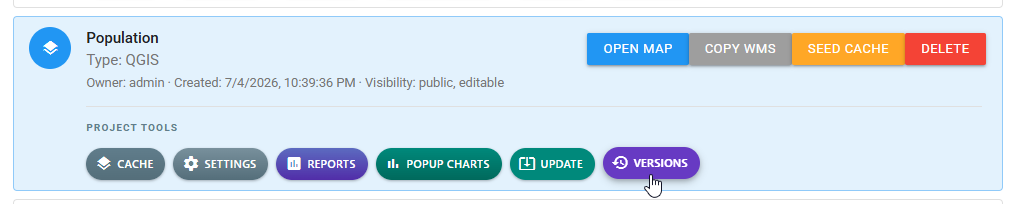
Select VERSIONS to open the project version history.
2. Review version history
The Version history dialog lists snapshots in reverse chronological order (newest first). Each entry shows a version label (for example v9) and a timestamp. The subtitle confirms that snapshots are taken before each update or restore.
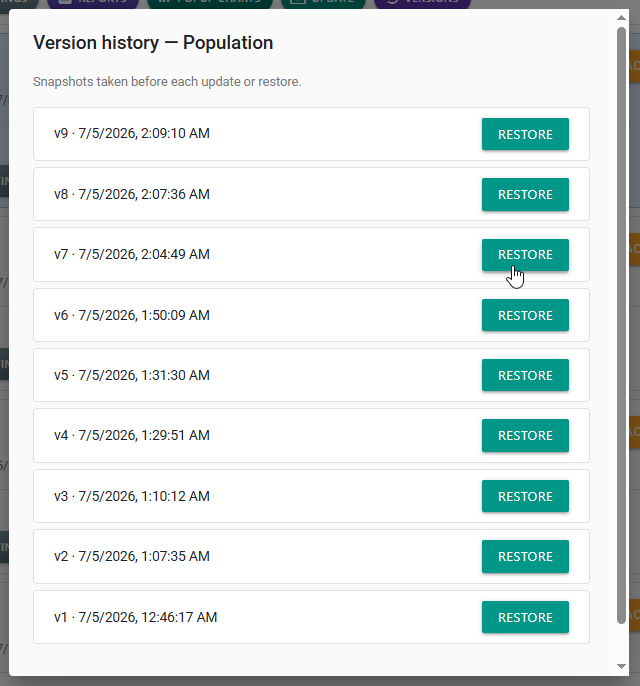
Each snapshot includes a timestamp and a RESTORE action.
Use the timestamps to identify the state you want — for example the version created immediately before a problematic update.
3. Restore a previous version
- Find the snapshot to bring back.
- Click RESTORE for that version.
- Wait for the restore to finish.
- Click OPEN MAP and verify layers, styles, and popups.
- If you use Cached WMS or XYZ tiles, run SEED CACHE so tiles match the restored project — see Cache.
Restores also create snapshots
Restoring creates a new snapshot of the state you are leaving, so you can move forward again if the restored version is not the one you need.
Tips
Match timestamps to known changes
After each Upload, note the time. When troubleshooting, restore the snapshot whose timestamp is just before that update.
Verify before sharing again
After a restore, open the map and spot-check Feature Info, reports, and popup charts that depend on layer fields. Field renames in a newer project can break those tools until you reconfigure them.
Roll back a bad style update
You updated Population at 2:09 AM and the legend is wrong. Open VERSIONS, restore the snapshot from 2:04 AM (v7 in the example history), open the map to confirm, then re-seed the cache if needed.
Common Problems
Version history is empty
Snapshots appear after an update or restore. Upload a replacement project once, then reopen VERSIONS.
Restore does not change what viewers see
Refresh the map viewer and, for cached render modes, run SEED CACHE. Confirm you restored the intended version by checking its timestamp.
Linked reports or popup charts break after restore
An older project may use different layer or field names. Re-open Reports and Popup Charts and update bindings to match the restored project.
You restored the wrong version
Open VERSIONS again and restore the snapshot you want. Because restores are snapshotted, the state you left remains available in history.