Basemaps
Overview
Basemaps provide geographic context beneath the data layers in a map. Use the Basemaps registry to add tile services, choose the default basemap, control display order, and maintain the choices available in the map viewer and map builder.
Before You Begin
- An active AcuGIS Cloud account
- Administrator permission for the QGIS Publish service
- For an XYZ basemap, a tile URL containing
{z},{x}, and{y}placeholders - Any attribution text required by the tile provider
- Optional: a thumbnail stored at a path accessible to the map viewer
Check the provider's terms
Confirm that the tile provider permits your intended use. Follow its attribution, access-token, rate-limit, and caching requirements.
Step-by-Step
1. Open the Basemaps registry
Sign in to AcuGIS Cloud, open Services, and select Basemaps. The registry lists the tile basemaps available to the map viewer.
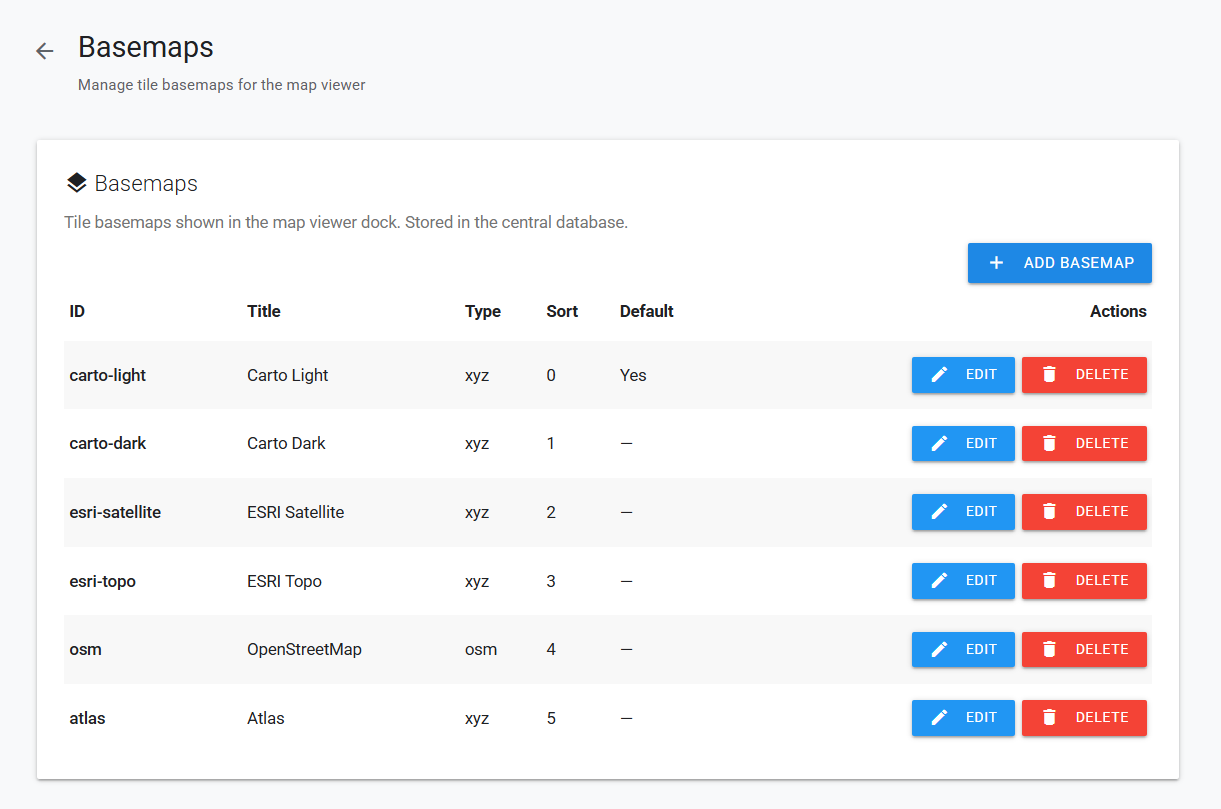
The registry shows each basemap's ID, title, source type, sort order, default status, and available actions.
Use the table to review the current configuration:
| Column | Description |
|---|---|
| ID | Stable identifier used by saved map configurations. |
| Title | Display name shown to users. |
| Type | Tile source type: xyz or osm. |
| Sort | Position in the basemap list; lower numbers appear first. |
| Default | Yes identifies the basemap selected by default. |
| Actions | Edit or delete the basemap definition. |
2. Start a new basemap
Click Add Basemap above the registry.

Select Add Basemap to open the New basemap form.
3. Enter the basemap details
Complete the form:
| Field | What to enter |
|---|---|
| ID | A unique ID of up to 64 letters, digits, underscores, hyphens, or periods, such as city-aerial. Do not use spaces or ... |
| Title | The user-facing name, such as City Aerial. |
| Thumbnail path | Optional path relative to the viewer, such as thumbs/city-aerial.png. |
| Source type | XYZ tiles for a URL template, or OpenStreetMap for the built-in OSM source. |
| Tile URL template | Required for XYZ sources. Include {z}, {x}, and {y}, for example https://tiles.example.com/{z}/{x}/{y}.png. |
| Cross origin | Cross-origin mode expected by the provider. Keep anonymous unless the provider requires another value. |
| Sort order | Number controlling where the basemap appears; lower values sort first. |
| Attributions | Provider and data-source credit displayed with the map. |
| Default basemap | Select to make this the initial basemap. |
Only one default
Setting a basemap as the default removes the default status from the previous one.
4. Save and verify
Click Save. After the success message, the form closes and the registry reloads.
- Confirm that the new ID and title appear in the table.
- Check its source type and sort order.
- If selected, confirm that Default shows Yes.
- Open the map builder or a map viewer and verify that the basemap loads at several zoom levels.
5. Edit a basemap
Click Edit beside a registry entry, update its settings, and click Save.
The ID is fixed while editing because saved maps use it to identify the basemap. To use a different ID, create a new entry and update affected maps before deleting the old entry.
6. Delete a basemap
Click Delete and confirm the prompt.
Check saved maps first
A saved map may still refer to the deleted ID. Update those maps to another basemap before deleting an entry that is already in use.
7. Select a basemap for a map
Open the map builder and select the Basemap tab. Choose one of the registry entries, or choose No basemap, then save the map. The selected basemap is stored with that map; the registry default is used when a new map has no saved selection.
Tips
Use HTTPS tile services
An HTTPS map viewer may block tiles requested over HTTP. Prefer an HTTPS tile URL to avoid mixed-content errors.
Test the complete zoom range
A tile service can work at one zoom level and return blank tiles at another. Test both overview and detailed views before making it the default.
Leave room in the sort order
Use values such as 10, 20, and 30 when setting the order. The gaps make it easier to insert another basemap later without renumbering every entry.
Keep attribution accurate
Copy the required wording and links from the provider. Recheck attribution when changing providers or tile endpoints.
XYZ basemap
For an ID of city-aerial, use a clear title such as City Aerial, select XYZ tiles, enter the provider's {z}/{x}/{y} URL, add its required attribution, and test the result before selecting Default basemap.
Common Problems
Basemaps page does not open
Basemap management requires administrator permission for the QGIS Publish service. Ask an administrator to confirm your service permissions.
The registry fails to load
Reload the page. If the error continues, the central basemap registry may be unavailable; contact the platform administrator.
Basemap will not save
Confirm that the ID contains only supported characters and that a title is present. XYZ sources also require a tile URL.
Tiles are blank or broken
Confirm that the XYZ URL includes {z}, {x}, and {y} exactly as required by the provider. Also check HTTPS, CORS policy, access tokens, domain restrictions, rate limits, and the provider's supported zoom range.
Thumbnail does not appear
The thumbnail path is relative to the viewer. Verify the path and filename, including letter case, and confirm that the image is available to the browser.
The new default is not visible
Confirm that the entry shows Yes in the Default column, then reload the map builder. A saved map can retain its own basemap selection instead of using the registry default.