Cache
Overview
Choose how a published map is rendered and served. The Cache tool sets the project render mode. Use SEED CACHE on the project card when you need to pre-generate tiles for a cached mode.
Before You Begin
- An active AcuGIS Cloud account with permission to manage the published map
- A published QGIS project open under Maps → Published Maps
- An understanding of whether viewers need live WMS responses or faster cached tiles
Render mode vs. seeding
Cache selects the render mode. SEED CACHE builds or refreshes tile cache for modes that use one. Change the mode first, then seed when you use Cached WMS or XYZ tiles.
Step-by-Step
1. Open Cache from Project Tools
On the published map card, under PROJECT TOOLS, click CACHE.

Project tools on the published map card — select CACHE to open render mode settings.
2. Choose a render mode
The Cache dialog lists the available modes under RENDER MODE:
| Mode | When to use it |
|---|---|
| Direct WMS | Live rendering from the project. Best when data changes often and you need current results on every request. |
| Cached WMS | WMS responses served from cache. Improves performance for relatively stable maps. |
| XYZ Tiles | Standard XYZ tile delivery. Strong choice for wide public viewing and predictable zoom performance. |
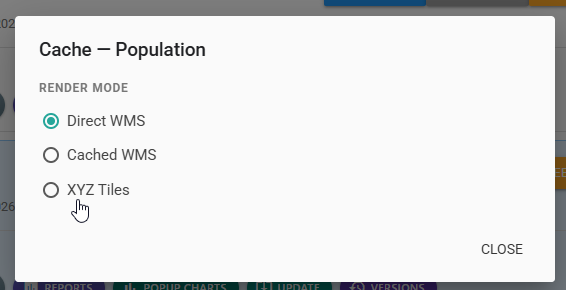
Select Direct WMS, Cached WMS, or XYZ Tiles for the published project.
- Select the mode that matches your update frequency and performance needs.
- Click CLOSE when finished.
- If you selected Cached WMS or XYZ Tiles, return to the project card and click SEED CACHE so viewers receive generated tiles.
Seed after meaningful style or data changes
After you upload a new project or change symbology, re-seed the cache so viewers do not keep stale tiles.
Tips
Use Direct WMS while editing
Keep Direct WMS while you iterate on styles or data. Switch to Cached WMS or XYZ tiles when the map is ready for wider viewing.
Seed after switching modes
Switching to Cached WMS or XYZ tiles without seeding can leave the viewer with missing or incomplete tiles until a seed completes.
Public demographic map
A population map changes only when you publish a new project file. Choose XYZ Tiles, close the dialog, then click SEED CACHE on the project card before sharing the viewer URL.
Common Problems
Map loads slowly after publish
Confirm whether the project is still on Direct WMS. For stable maps, switch to Cached WMS or XYZ Tiles and run SEED CACHE.
Tiles missing or outdated after an update
Re-run SEED CACHE after uploading a new project or changing styles. If problems continue, open CACHE, verify the intended render mode, then seed again.
Live data does not appear on the map
Cached modes can serve older tiles. Switch temporarily to Direct WMS to confirm the live project, then decide whether to keep Direct WMS or re-seed a cached mode.