Metadata
Overview
Add optional catalog information for a published map — title, summary, description, categories, tags, organization, contacts, licensing, and related fields. Metadata is managed from Settings → Metadata, and viewers can open a read-only summary from the map.
Before You Begin
- An active AcuGIS Cloud account with permission to manage the published map
- A published QGIS project under Maps → Published Maps
- The descriptive text, contact details, and license information you want to publish
Step-by-Step
1. Open Metadata from Settings
On the published map card, under PROJECT TOOLS, click SETTINGS. In the Settings dialog, select Metadata.
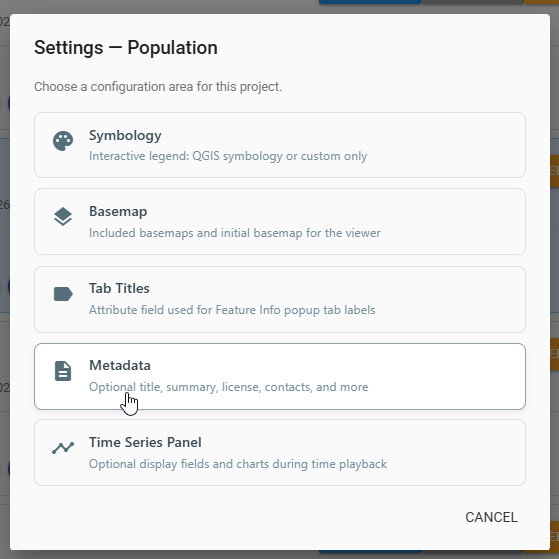
Metadata is one of the configuration areas under Settings.
2. Create metadata when none exists
If the project has no metadata yet, the dialog explains that and offers CREATE METADATA.
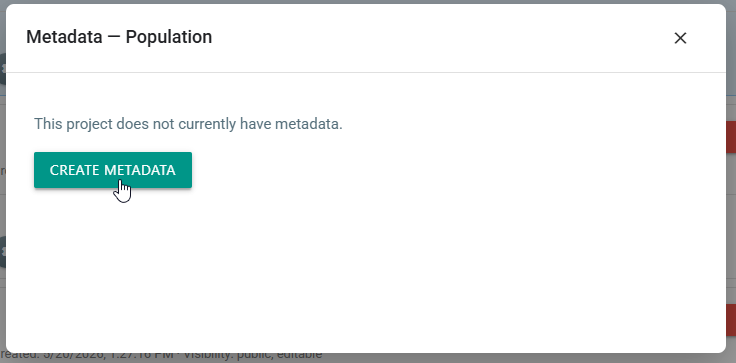
Click CREATE METADATA to open the editor for the first time.
Click CREATE METADATA.
3. Complete the metadata fields
The editor organizes fields across General, Licensing, and Advanced tabs. On General, typical fields include:
| Field | Purpose |
|---|---|
| Title | Display title for the map |
| Summary | Short synopsis |
| Description | Longer explanation of content and use |
| Category | Categories (often comma-separated) |
| Tags | Searchable keywords (comma-separated) |
| Organization | Owning or publishing organization |
| Contact Name / Contact Email | Point of contact |
| Language | Language code (for example eng) |
| Version | Dataset or product version string |
Fill in the values that apply, then review Licensing and Advanced as needed.
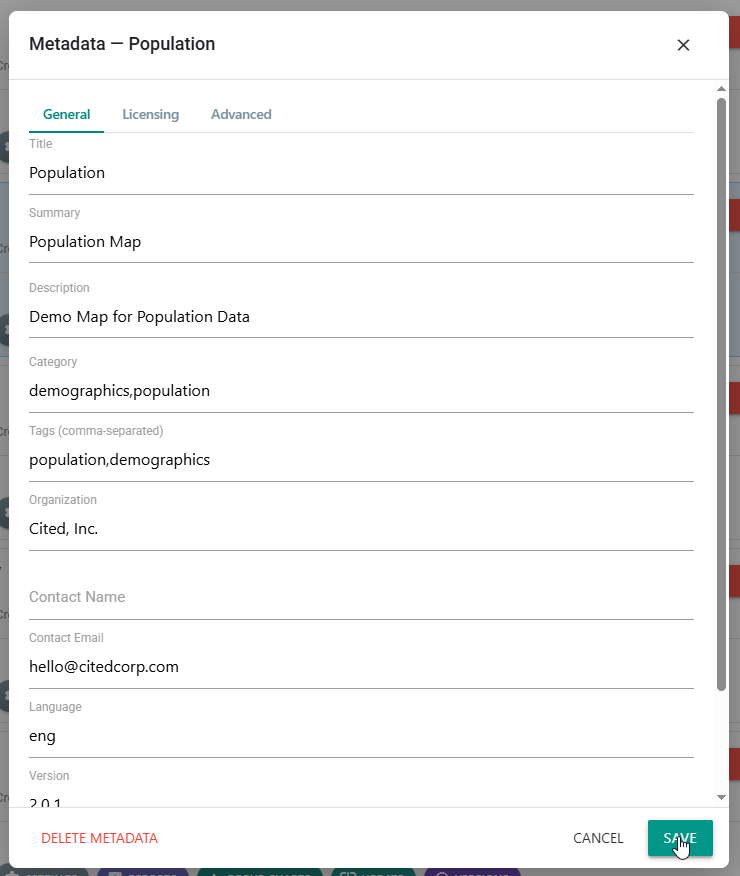
Enter catalog details on General (and other tabs), then click Save.
- Click Save to keep your changes.
- Use Delete Metadata only when you intentionally want to remove the entire metadata record.
- Click Cancel to discard unsaved edits.
4. View metadata in the map
Open the map and open the Metadata panel from the viewer. Confirm that title, summary, categories, tags, version, organization, and contact appear as expected.
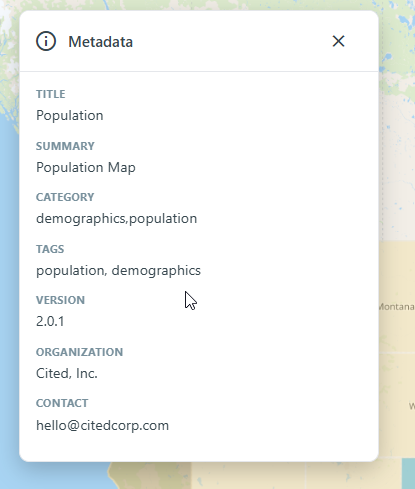
Viewers see a concise read-only summary of the saved metadata.
Tips
Write for discovery
Use a clear title, a one-line summary, and consistent tags so colleagues can find the map later. Prefer shared vocabulary across related projects.
Keep contact email current
Viewers often use the contact field when they have questions about the data. Update it when ownership changes.
Demographics map
Set Title to Population, Summary to Population Map, add tags such as population,demographics, record the organization and support email, save, then open the map Metadata panel to verify the summary.
Common Problems
CREATE METADATA is the only option shown
The project has no metadata record yet. Click CREATE METADATA, complete the form, and Save. On later visits the editor opens with your existing values.
Saved fields do not appear in the viewer
Confirm you clicked Save, then refresh or reopen the map and open the Metadata panel again. Empty optional fields are omitted from the read-only view.
Tags or categories look incorrect
Enter values as comma-separated lists without extra punctuation. Re-open the editor and correct spacing or duplicates, then save.
Metadata was deleted accidentally
Delete Metadata removes the record. Recreate it with CREATE METADATA and re-enter the fields, or restore an earlier project version if the content lived only in a previous snapshot — see Versions.