Upload
Overview
Replace a published map’s project files with an updated .qgs, .qgz, or .zip bundle. The project ID and viewer URLs stay the same. Before replacement, AcuGIS Cloud snapshots the current runtime files so you can restore them later from Versions.
Before You Begin
- An active AcuGIS Cloud account with permission to manage the published map
- A published QGIS project under Maps → Published Maps
- An updated project file (
.qgsor.qgz) or a.zipthat contains the project and required assets - Confirmation that layer names and connections still match what the viewer and linked tools expect
Package side-car data
When layers reference shapefiles, GeoPackages, or other files, zip the project together with those assets before uploading — the same packaging practice used when you first publish a QGIS project.
Step-by-Step
1. Open Update
On the published map card, under PROJECT TOOLS, click UPDATE.

Select UPDATE to upload a replacement project bundle for the published map.
2. Choose the updated project file
The Update project dialog explains that:
- You can upload an updated
.qgs,.qgz, or.zipbundle - Current runtime files are snapshotted before replacement
-
Project ID and viewer URLs stay the same
-
Click FILE and select the updated project or zip.
- Confirm the filename appears next to the button.
- Click UPDATE.
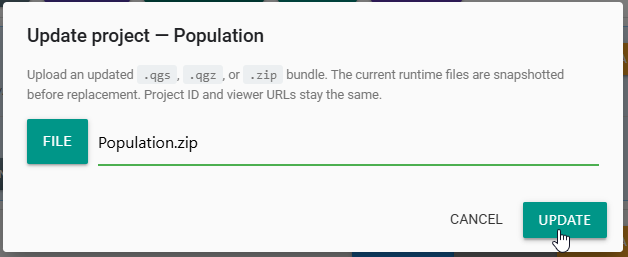
Select the new project bundle, then click UPDATE to replace the published files.
Wait for the update to finish before leaving the page.
3. Verify the published map
- Click OPEN MAP and confirm layers, styles, and popups look correct.
- If you use Cached WMS or XYZ tiles, run SEED CACHE so viewers receive tiles that match the new project — see Cache.
- Open VERSIONS if you need to confirm a snapshot was created or restore the previous state — see Versions.
Tips
Update in place to keep links stable
Prefer UPDATE over deleting and re-publishing when you want bookmarks, embeds, and WMS URLs to keep working.
Snapshot before risky changes
Every update creates a snapshot automatically. Still, open VERSIONS after a successful update so you know which version to restore if validation fails.
Style refresh for Population
Export an updated Population.zip from QGIS, open UPDATE on the published Population project, select the zip, click UPDATE, open the map to verify symbology, then seed the cache if you use a cached render mode.
Common Problems
File picker does not show the project
Set the file filter to include .qgs, .qgz, and .zip. If the project still does not appear, confirm the extension and try packaging the project and assets into a zip.
Update succeeds but layers are missing
The zip may omit side-car data, or PostGIS connection names may not match the Database Services configured in AcuGIS Cloud. Re-package the project or align connection names, then update again.
Viewers still see the old map
Hard-refresh the viewer and, for cached modes, run SEED CACHE. If needed, confirm in VERSIONS that the latest update is the active state.
You need to undo an update
Open VERSIONS and RESTORE the snapshot taken before the problematic update. See Versions.