Popup Charts
Overview
Configure charts that appear in Feature Info when users click map features. Choose the layer, chart title and type, data source scope, and which attribute fields to plot.
Before You Begin
- An active AcuGIS Cloud account with permission to manage the published map
- A published QGIS project under Maps → Published Maps
- Numeric or categorical attribute fields suitable for charting
- A clear chart title for each visualization you want in the popup
Step-by-Step
1. Open Popup Charts
On the published map card, under PROJECT TOOLS, click POPUP CHARTS.
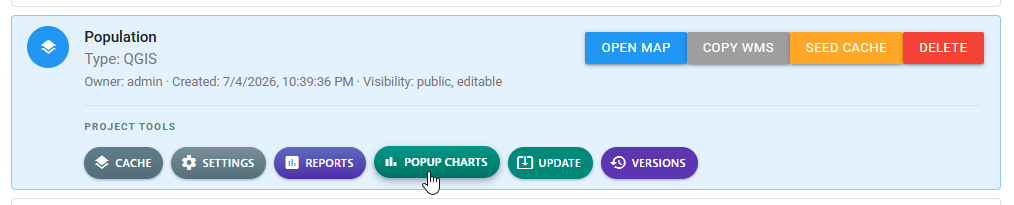
Select POPUP CHARTS to manage charts shown in Feature Info.
2. Select a layer and add a chart
In the Popup Charts dialog:
- Select a layer in the left list. A badge shows how many charts are already configured for that layer.
- Click ADD POPUP to create a chart, or select an existing chart in the middle list.
- Use DELETE when you need to remove the selected chart.
3. Configure the chart
For the selected chart, set:
| Setting | Description |
|---|---|
| Chart Title | Label shown above the chart in Feature Info |
| Chart Type | Visualization type (for example Bar) |
| Data Source | Current Feature, Current Layer, or Related Layer |
| Fields to Display | Attributes included in the chart |
Typical workflow for a feature-level comparison:
- Enter a descriptive Chart Title.
- Choose Chart Type (for example Bar).
- Select Current Feature when the chart should reflect the clicked feature only.
- Check the fields to plot (for example Persons, Families, and Households).
- Click SAVE.
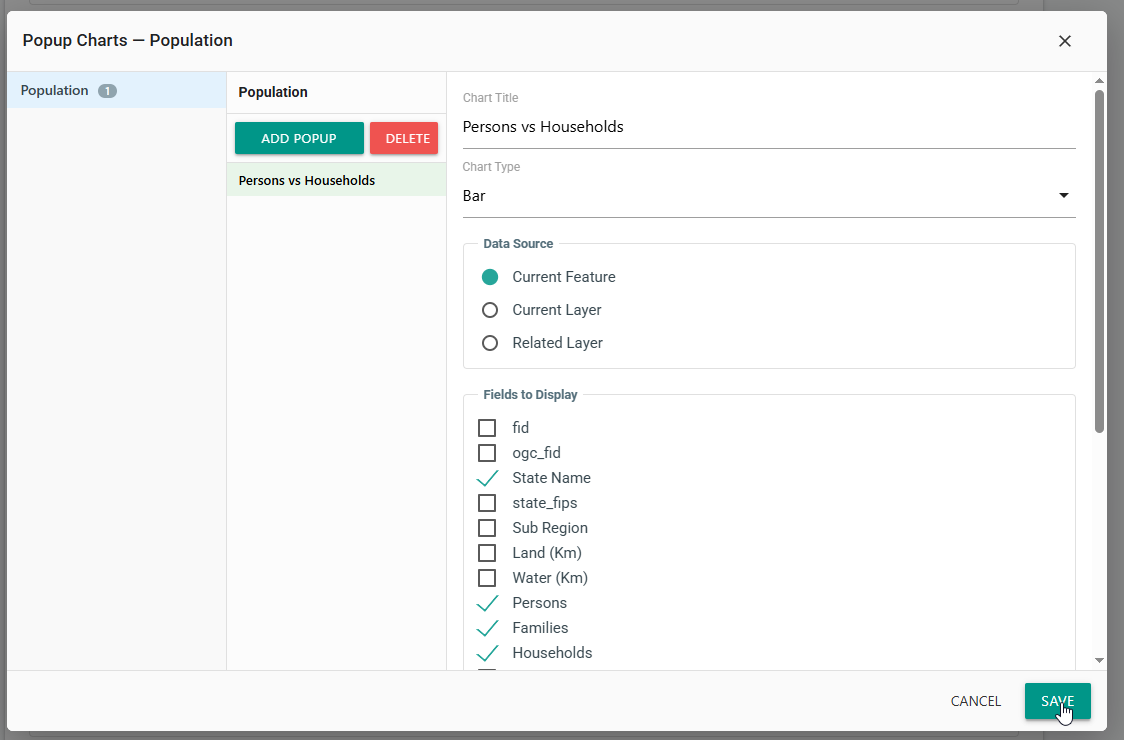
Add a popup chart, choose type and fields, then save.
Prefer Current Feature for comparisons
Use Current Feature when the chart compares attributes of the clicked feature. Use Current Layer or Related Layer when the chart should aggregate or pull from a broader set.
4. Verify the chart in Feature Info
Click OPEN MAP, select a feature, and confirm the chart appears under the attribute list in Feature Info. Hover a series or bar to read the tooltip value.
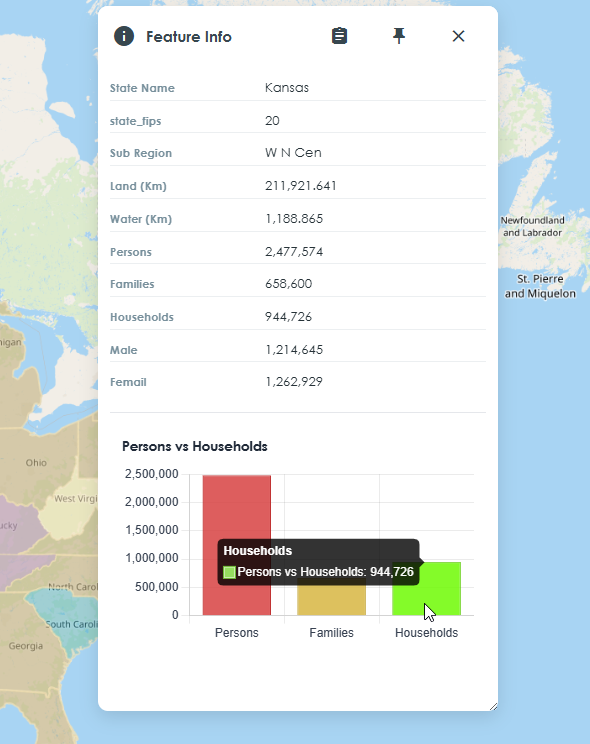
Saved popup charts render in Feature Info for the configured layer.
Tips
Keep field lists focused
Chart only the attributes users need to compare. Extra fields clutter the popup and can make scales harder to read.
Name charts for the question they answer
Titles such as Persons vs Households are clearer in Feature Info than generic names like Chart 1.
State demographics bar chart
On the Population layer, add a bar chart titled Persons vs Households, set the data source to Current Feature, select Persons, Families, and Households, save, then click a state on the map to confirm the bars and tooltips.
Common Problems
No chart appears in Feature Info
Confirm you saved the chart on the correct layer, then click a feature on that layer. Charts configured for one layer do not appear for others.
Chart fields are missing or show unexpected values
Re-open POPUP CHARTS and verify the checked fields exist on the layer and contain numeric values appropriate for the chart type.
Chart reflects the wrong scope of data
Check Data Source. Switch between Current Feature, Current Layer, and Related Layer depending on whether you need one feature, the whole layer, or a related table.
Too many charts on one layer
Each added popup appears in Feature Info. Delete unused charts or split comparisons across clearer titles so the popup stays readable.