Settings
Overview
Settings opens configuration areas for a published project: interactive legend symbology, included basemaps, Feature Info tab titles, metadata, and the Time Series panel. Metadata has its own guide; this page covers the display and temporal options.
Before You Begin
- An active AcuGIS Cloud account with permission to manage the published map
- A published QGIS project under Maps → Published Maps
- For tab titles: attribute fields that identify features clearly
- For the Time Series panel: a project with temporal layers and fields suitable for filters, statistics, or charts
Step-by-Step
1. Open Settings
On the published map card, under PROJECT TOOLS, click SETTINGS.
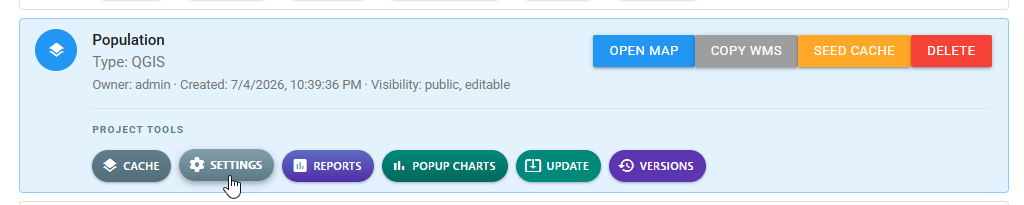
Select SETTINGS on the project card to open the configuration menu.
The Settings dialog lists the available areas:
| Area | Purpose |
|---|---|
| Symbology | Interactive legend from QGIS symbology or custom-only mode |
| Basemap | Which basemaps appear in the viewer and which opens first |
| Tab Titles | Attribute field used for Feature Info popup tab labels |
| Metadata | Optional catalog fields — see Metadata |
| Time Series Panel | Temporal filter, map widgets, and charts during time playback |
2. Configure symbology
In Settings, select Symbology.
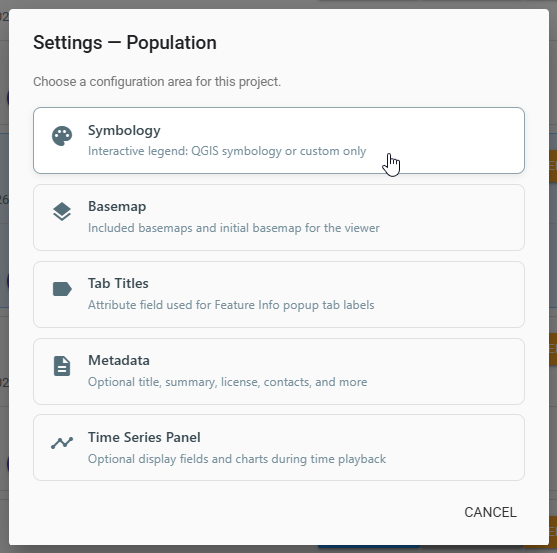
Choose Symbology to control the interactive legend.
Under INTERACTIVE LEGEND, choose:
| Option | Behavior |
|---|---|
| Use QGIS Symbology | Legends are built from the QGIS categorized renderer. |
| Custom Only | Use custom legend behavior instead of QGIS symbology. |
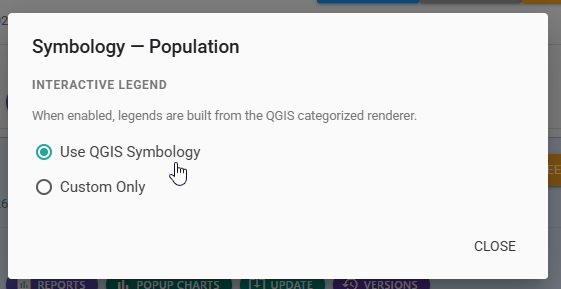
Select Use QGIS Symbology or Custom Only, then close the dialog.
Click CLOSE when finished.
3. Configure basemaps
Return to Settings and select Basemap.
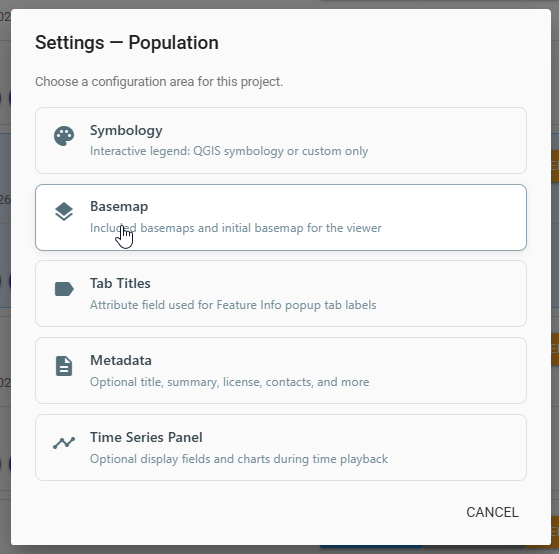
Open Basemap to choose included and initial basemaps for the viewer.
In Basemap:
- Under INCLUDED BASEMAPS, check every basemap that should appear in the viewer dock.
- Under INITIAL BASEMAP, select the basemap shown when the map first opens. Only included basemaps are listed.
- Optionally click RESET TO ALL to include every available basemap.
- Click SAVE.
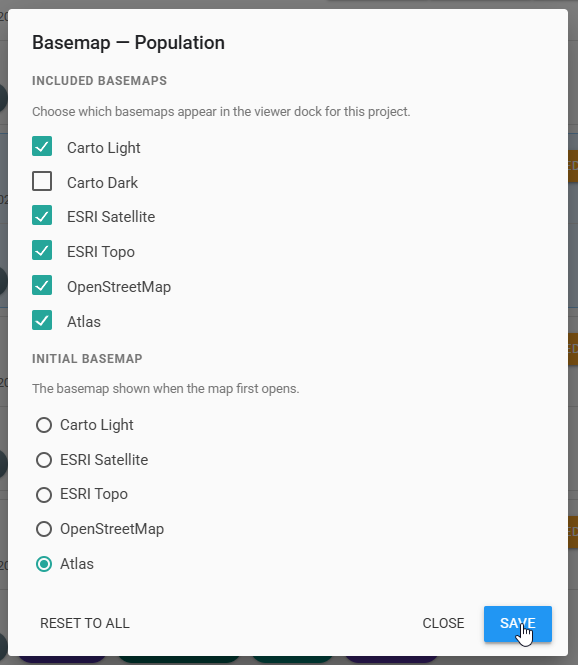
Include the basemaps viewers may switch to, pick the initial basemap, then save.
Contrast with your data
Choose an initial basemap that keeps your primary layers readable — for example a light canvas under dense choropleths, or imagery when features need ground context.
4. Set Feature Info tab titles
Return to Settings and select Tab Titles.
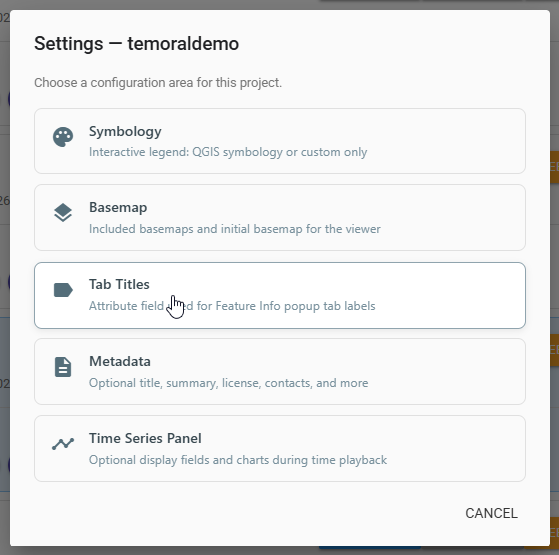
Tab Titles controls the attribute shown on Feature Info tabs when a click returns multiple features.
In Tab Title Fields:
- Select a layer in the left list.
- Open Tab title field and choose an attribute, or keep Auto (name, title, label, id...).
- Repeat for other layers as needed.
- Click SAVE.
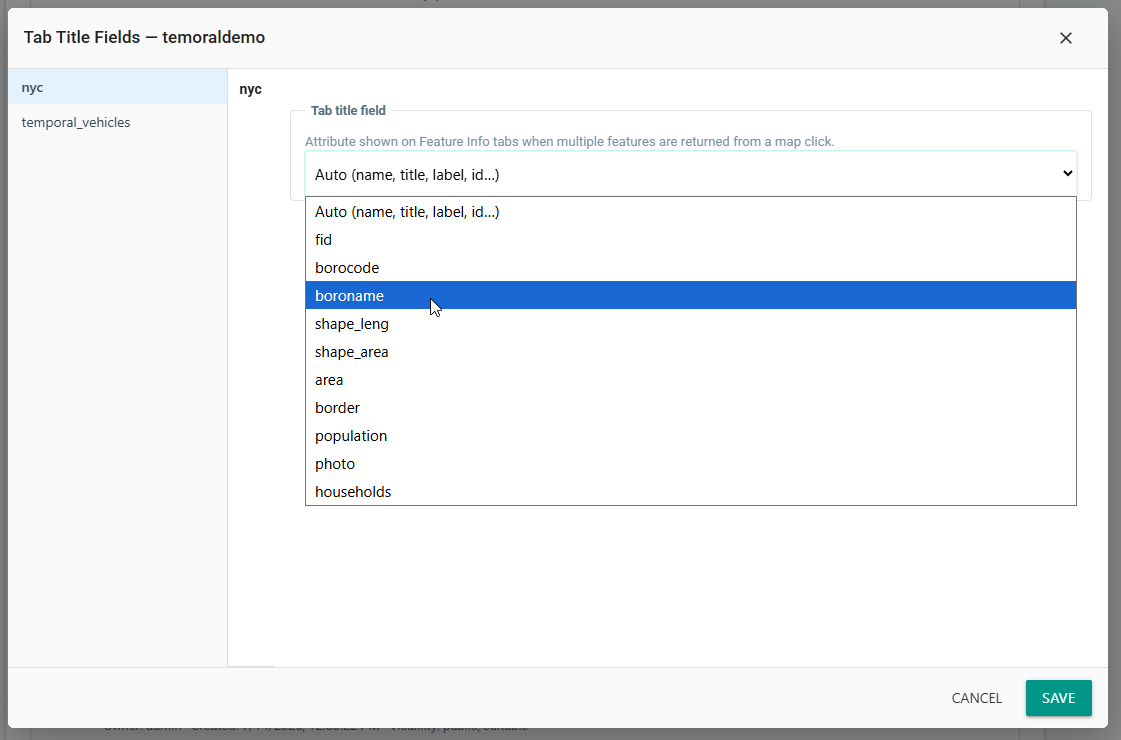
Pick a human-readable field such as a name or borough so tabs are easy to scan.
5. Configure the Time Series panel
For temporal projects, return to Settings and select Time Series Panel.
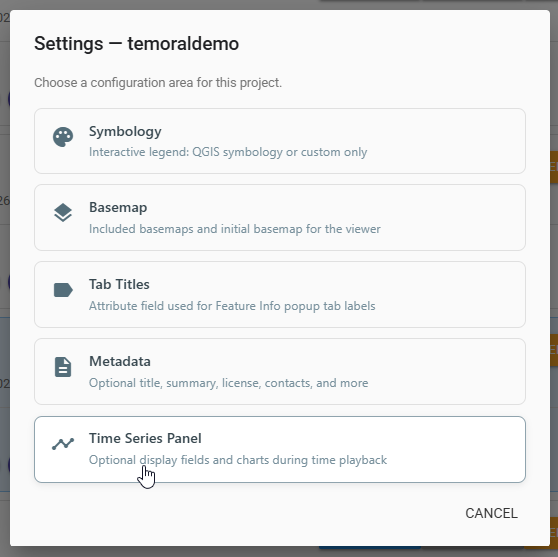
Open Time Series Panel to enable temporal filters, widgets, and charts.
In the Time Series Panel dialog:
- Check Enable Time Series Panel.
- Optionally enable Temporal Filter, choose a Field, set a Default Value if needed, and decide whether to Apply filter to map display.
- Under Map Widgets, click + ADD WIDGET and configure titles and statistics (for example Average Speed and Max Speed).
- Click SAVE.
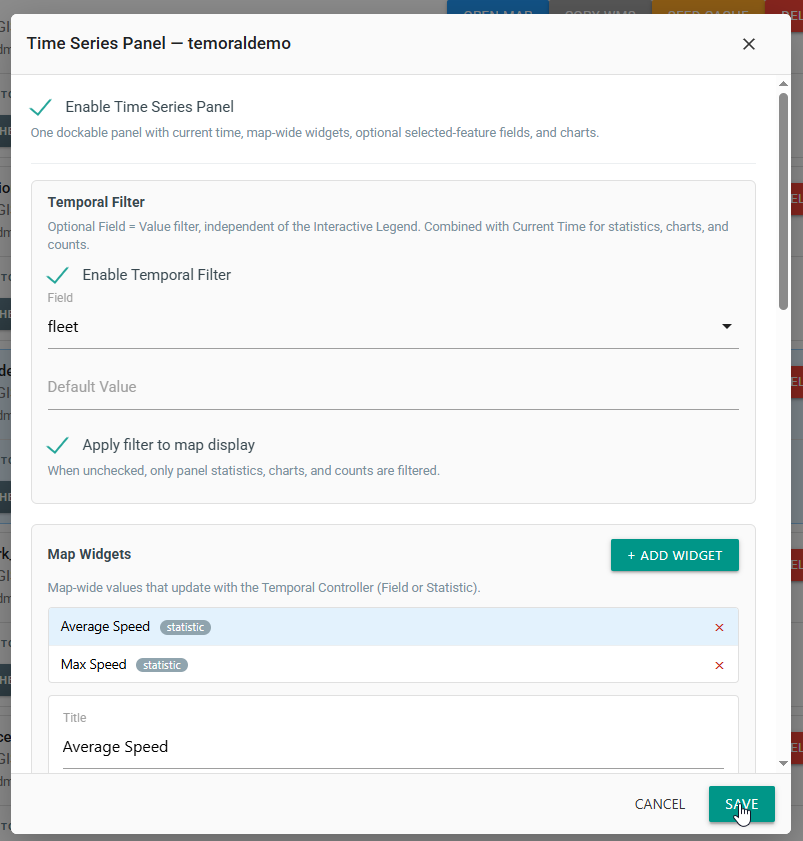
Enable the panel, configure the temporal filter and widgets, then save.
6. Verify in the map viewer
Click OPEN MAP on the project card. Confirm:
- The interactive legend matches your symbology choice
- The initial basemap and dock list match your basemap settings
- Feature Info tabs use the expected field labels
- For temporal maps, the Temporal panel shows filters, statistics, and charts
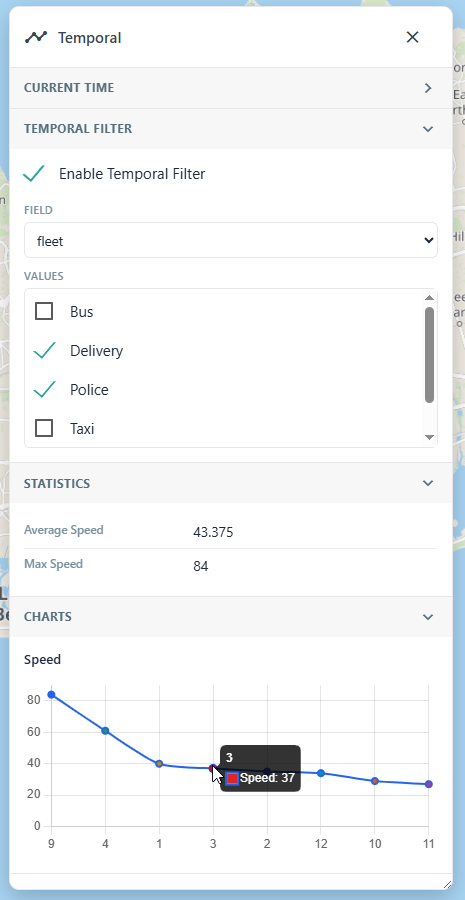
After configuration, the Temporal panel filters values and updates statistics and charts during playback.
Tips
Configure layers one at a time for tab titles
Set a clear tab title field on each layer that users click often. Auto works for many datasets, but named fields such as boroname or State Name are easier to read.
Keep temporal filter and map display in sync when needed
Leave Apply filter to map display checked when the map should match the panel filter. Uncheck it when you only want panel statistics and charts filtered.
Fleet monitoring map
Enable the Time Series panel, filter on fleet, add Average Speed and Max Speed widgets, save, then open the map and confirm the Temporal panel updates as you change values and time.
Common Problems
Expected basemap is missing from the viewer
Open Basemap and confirm the basemap is checked under INCLUDED BASEMAPS. Only included basemaps can be chosen as the initial basemap or switched to in the dock.
Feature Info tabs show IDs instead of names
Open Tab Titles, select the layer, and set Tab title field to a readable attribute instead of an internal ID.
Time Series panel does not appear
Confirm Enable Time Series Panel is checked and saved. Open the map again and look for the Temporal dock. The project must expose temporal data for filters and charts to populate.
Statistics or charts stay empty
Enable the temporal filter, select values that return features, and confirm map widgets and chart fields point at numeric attributes present in the layer.