Connect to PostGIS
Overview
Create a reusable PostGIS service definition in AcuGIS Cloud. A service definition stores the PostgreSQL connection settings in pg_service.conf, allowing uploaded QGIS projects to refer to the database by service name instead of embedding connection details in each project.
Creating a service definition does not copy or import database tables. To create AcuGIS Cloud datasets from PostGIS data, follow Import from PostGIS after configuring the connection.
Before You Begin
- Sign in to an active AcuGIS Cloud account with permission to manage PostGIS services.
- Have the database host name or IP address, port, database name, username, and password.
- Confirm that the PostGIS server accepts connections from the AcuGIS Cloud server.
- Confirm that firewalls, security groups, and PostgreSQL access rules allow the connection.
- Ask the database administrator which SSL mode the server requires.
Protect database credentials
The interface stores the password in pg_service.conf as plaintext. Use a dedicated, least-privilege database account, restrict access to the configuration file, and rotate the password according to your security policy.
Step-by-Step
Create a PostGIS service
1. Open PostGIS Services
Open Administration, then select PostGIS Services. The page lists the service definitions currently available to uploaded QGIS projects.
Click Add Service.
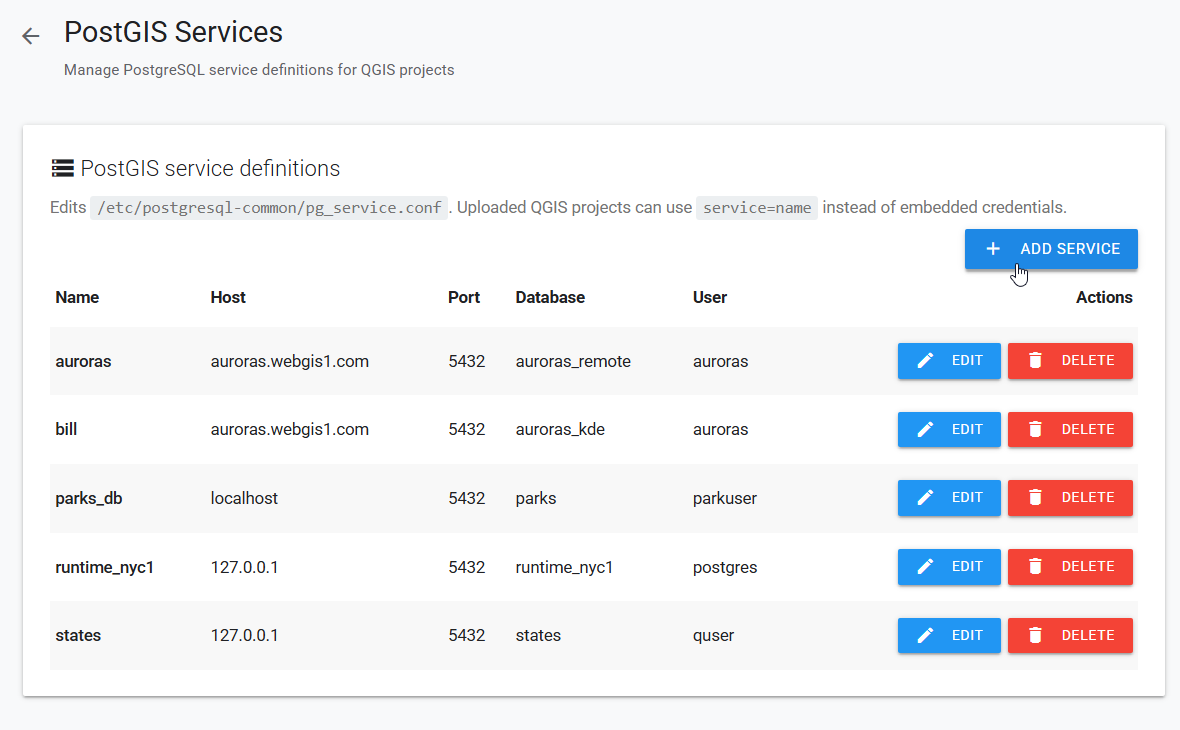
Caption: Add Service opens the form for creating a reusable PostGIS connection.
Review existing services first
Check the list for a service that already points to the same host and database. Reusing an approved service avoids duplicate credentials and makes QGIS projects easier to maintain.
2. Enter the connection details
Complete the New service form:
- Service Name — enter the name that QGIS projects will use. Use only letters, digits, hyphens, and underscores.
- Host — enter the database server's DNS name or IP address as reached from the AcuGIS Cloud server.
- Port — enter the PostgreSQL port. The default is
5432. - Database — enter the PostgreSQL database name.
- Username and Password — enter credentials for a database role with only the access the project needs.
- SSL Mode — select the mode required by the PostgreSQL server and your security policy.
Service names are project references
Uploaded QGIS projects can use service=service_name instead of storing the host, port, database, and username in the project. The service name in AcuGIS Cloud must exactly match the name referenced by the project.
3. Test the connection
Click Test Connection. A green Connected message displays the host, port, and database when AcuGIS Cloud can authenticate and reach the database.
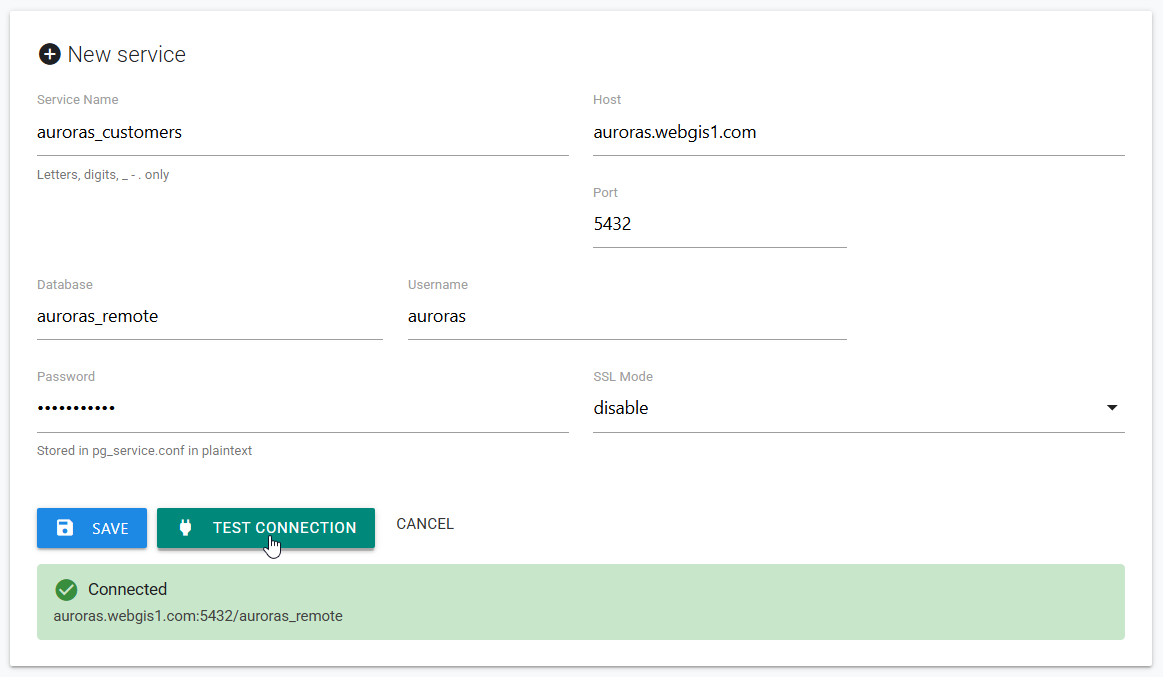
Caption: Test the settings before saving so network, authentication, and database-name errors can be corrected immediately.
Test from AcuGIS Cloud
A connection that works from a desktop computer may still fail from AcuGIS Cloud. The test verifies connectivity from the server that will open the uploaded QGIS project.
4. Save and verify the service
After a successful test, click Save. Confirm that the new service appears in the list and that its host, port, database, and user are correct.
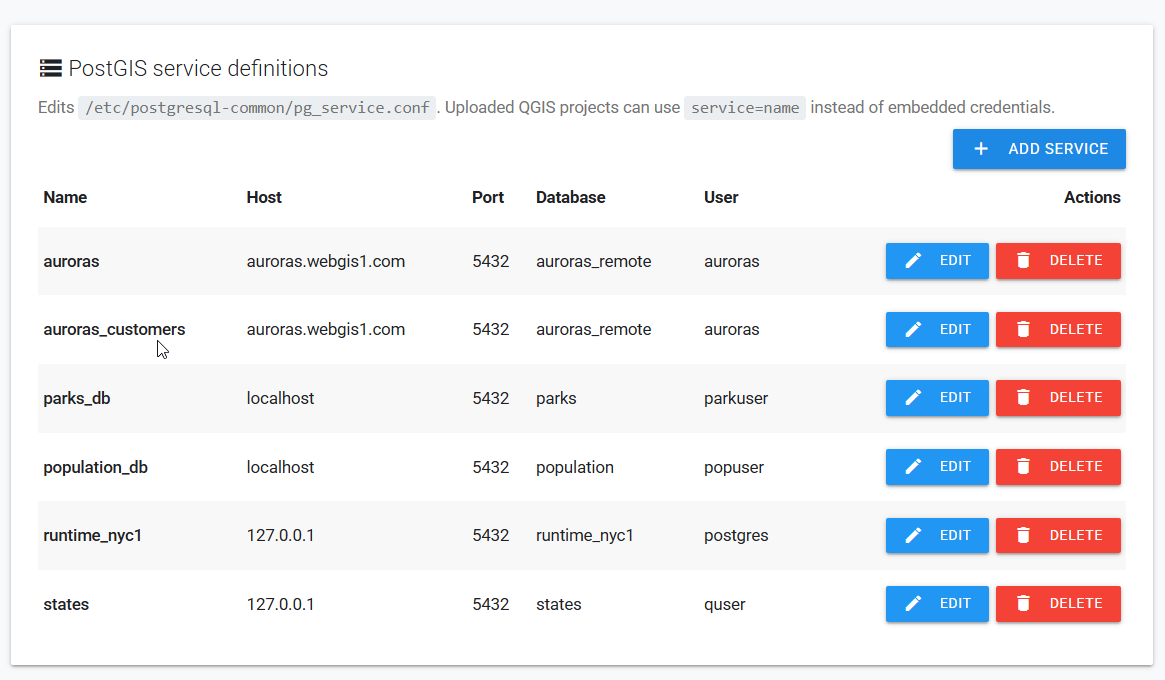
Caption: The saved service is available when a QGIS project references its service name.
Verify before publishing
The list does not display the password. Confirm the visible settings and test the QGIS project with a non-destructive database operation before publishing it to users.
Edit an existing service
1. Select the service
On PostGIS Services, find the service and click Edit.
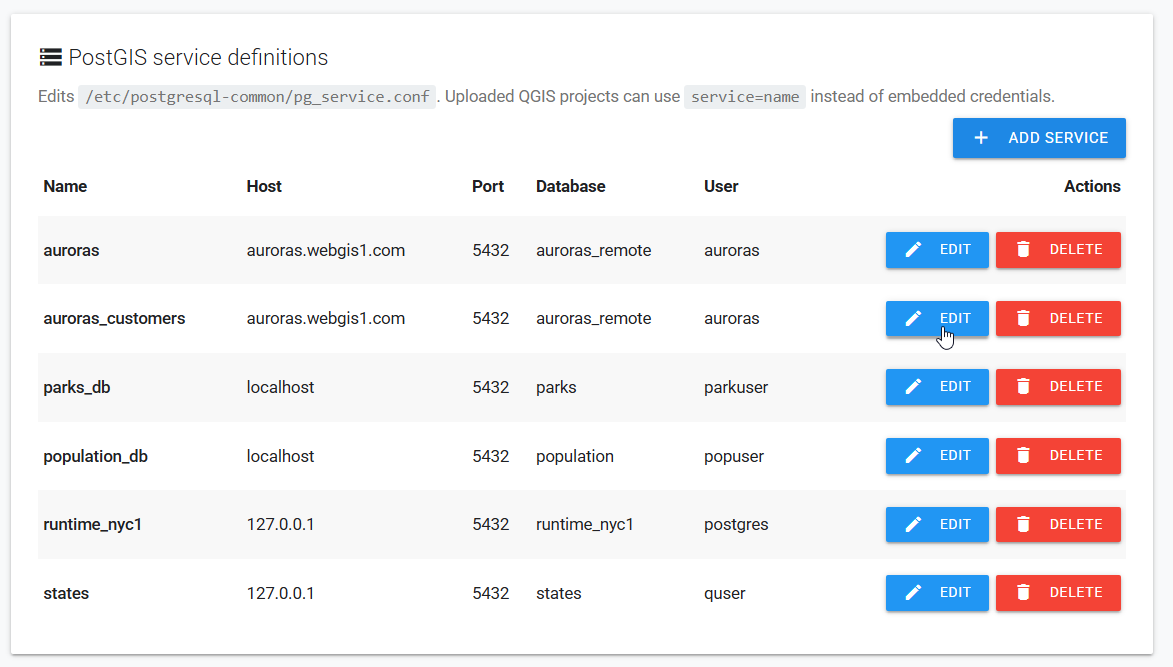
Caption: Edit changes the shared definition used by every QGIS project that references this service name.
2. Make and test the changes
Update the required fields. If credentials changed, enter the current password, then click Test Connection. Click Save only after the test succeeds.
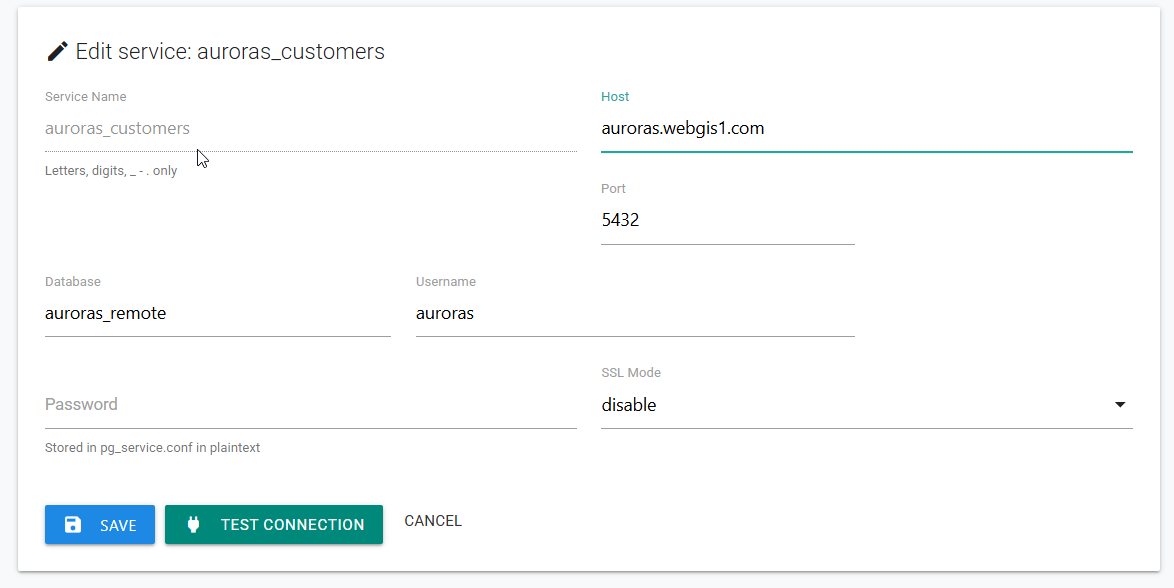
Caption: Test edited connection settings before replacing the active service definition.
Edits affect dependent projects
Changing a service definition can affect every uploaded QGIS project that uses its name. Keep the service name unchanged when rotating credentials or moving the same database, and verify dependent projects immediately after saving.
Use the Service in QGIS
Configure the PostgreSQL connection used by your QGIS project to reference the saved service name. Before uploading the project, verify that:
- The QGIS service name exactly matches the AcuGIS Cloud service definition.
- Layer sources do not depend on a local-only host name, file, or credential.
- The database role can read all required schemas, tables, views, and geometry columns.
- Editing projects have the required insert, update, or delete privileges and no broader privileges than necessary.
See Publish QGIS Projects for the complete publishing workflow.
Tips
Use a stable service name
Choose a descriptive name tied to the connection's purpose, such as planning_readonly, rather than a person's name or a temporary host. A stable name lets administrators change the underlying host or credentials without editing every project.
Prefer DNS names
Use a DNS name when the database address may change. Remember that localhost and 127.0.0.1 refer to the AcuGIS Cloud server itself, not your workstation or a separate database host.
Apply least privilege
Use a read-only role for map viewing. Grant write permissions only when a project supports feature editing, and limit access to the required schemas and tables.
Coordinate credential rotation
Test new credentials, update the service during a planned maintenance window, and verify all dependent projects. Keep a record of which projects use each service name.
Common Problems
Test Connection cannot reach the server
Verify the host and port, then confirm that DNS, routing, firewalls, cloud security groups, and PostgreSQL listen_addresses permit traffic from the AcuGIS Cloud server. Do not use localhost unless PostgreSQL runs on that same server.
Authentication fails
Re-enter the username and password and check for expired or locked credentials. Confirm that PostgreSQL pg_hba.conf permits the database role and AcuGIS Cloud source address to connect to the selected database.
The database does not exist
Database names are case-sensitive when quoted and must identify a database on the selected host and port. Confirm the name with the database administrator and make sure the role has CONNECT permission.
An SSL or certificate error appears
Select the SSL mode required by the server. If certificate verification is enforced, confirm that the server certificate is valid for the host name and that the required certificate authority is trusted by the AcuGIS Cloud server.
The service saves but the QGIS project cannot connect
Confirm that the project uses service=service_name and that the name exactly matches the saved definition. Check every layer source because a project can contain a mixture of service-based and embedded PostgreSQL connections.
Layers are missing or permission is denied
The connection may be valid while the database role lacks access to a schema, table, view, sequence, or geometry metadata. Grant only the missing permissions, then reload the project and test again.
Editing fails although layers display
Read and write privileges are separate. Confirm that the role has the required INSERT, UPDATE, or DELETE privileges and access to any sequences, triggers, or related tables used by the editing workflow.
A change disrupted multiple projects
Restore the last known working host and credentials if safe, test the service, and verify each dependent project. Use a new service name when the replacement points to a different database or has incompatible permissions.