Reports
Overview
Attach Jasper reports to a published map so users can open them from Feature Info or spatial selection. Configure which report template and datasource to use, how the report is triggered, which layers it applies to, and how parameters map from selected features.
Before You Begin
- An active AcuGIS Cloud account with permission to manage the published map
- A published QGIS project under Maps → Published Maps
- At least one Jasper report and datasource available to the project
- Layer attribute fields that can supply report parameters (for example a borough name)
Related reporting docs
For authoring report templates, parameters, and export formats outside this map tool, see Generate Reports.
Step-by-Step
1. Open Reports
On the published map card, under PROJECT TOOLS, click REPORTS.
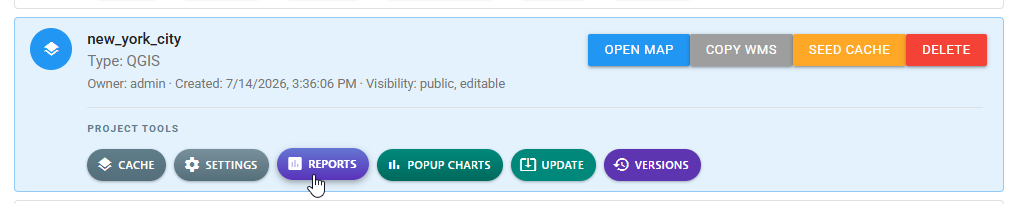
Select REPORTS to add or edit map-linked Jasper reports.
2. Add or select a report
In the Reports dialog:
- Click ADD to create a report entry, or select an existing report in the list.
- Optionally use DUPLICATE to copy a working configuration, or DELETE to remove one.
3. Configure the report
For the selected report, set:
| Setting | Description |
|---|---|
| Jasper Report | Report template to run |
| Datasource | Data connection the report uses |
| Popup Action | Offer the report from Feature Info |
| Spatial Selection Action | Allow running the report from a spatial selection |
| Selection Mode | For example multi when several features may be selected |
| Restrict to layers | Limit which layers expose the report |
| PARAMETERS | Map each Jasper parameter to a source such as Selection and a Layer Field |
Click SAVE when the configuration is complete.
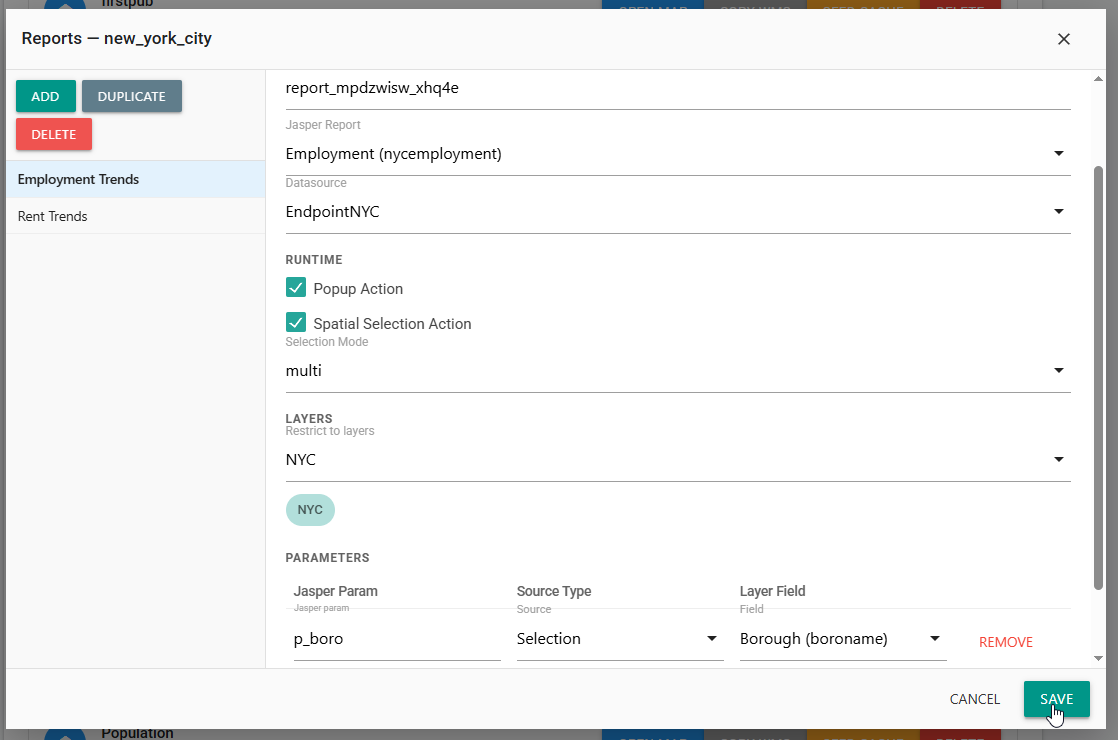
Bind the Jasper template and datasource, enable runtime actions, restrict layers, map parameters, then save.
Match parameter names
The Jasper Param name must match the parameter defined in the report template. Map it to the layer field that supplies the runtime value (for example Borough (boroname) for p_boro).
4. Open a report from Feature Info
Click OPEN MAP, select a feature, and scroll to REPORTS in Feature Info. Click the report action you configured (for example Open Rent Trends).
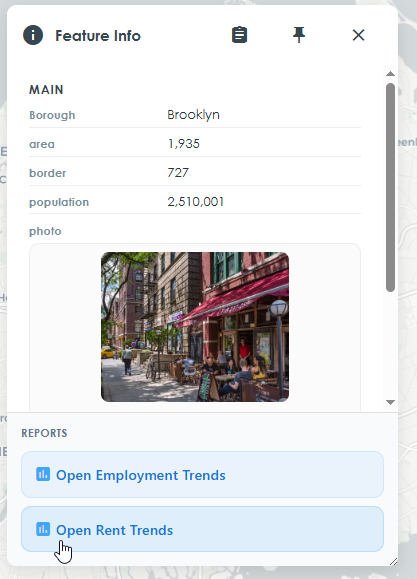
When Popup Action is enabled, report buttons appear in the Feature Info panel.
5. Review the generated report
The report opens in a viewer where you can inspect tables and charts, then export or print as needed.
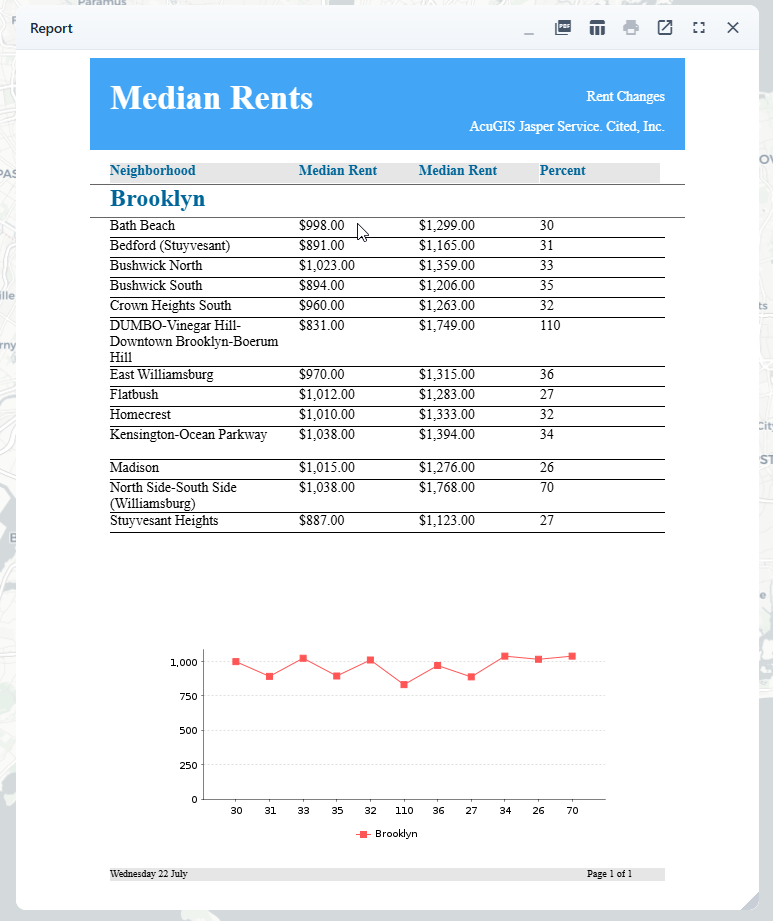
Generated reports can include tables, charts, and toolbar actions such as PDF export and print.
Tips
Restrict reports to the relevant layer
Use Restrict to layers so Feature Info only offers reports that apply to the selected feature’s layer.
Start from a duplicate
When two reports share the same datasource and parameter pattern, configure one carefully, then DUPLICATE and change only the Jasper template and title.
Borough employment report
Add a report, choose the Employment Jasper template and NYC datasource, enable Popup Action and Spatial Selection Action, restrict to the NYC layer, map p_boro to Borough (boroname), save, then click a borough on the map and open the report from Feature Info.
Common Problems
Report buttons do not appear in Feature Info
Confirm Popup Action is checked, the correct layer is listed under Restrict to layers, and you clicked SAVE. Re-open the map and select a feature on that layer.
Report opens with empty or wrong results
Check the Datasource, parameter Source Type, and Layer Field mapping. The selected feature must contain values for every required Jasper parameter.
Report cannot run for multiple features
Set Selection Mode to a multi-capable option (such as multi) and confirm the Jasper template accepts multiple input values.
Cannot find the Jasper template or datasource
The lists only show resources available to your account and project. Confirm the report and datasource are published and named as expected in the reporting service.